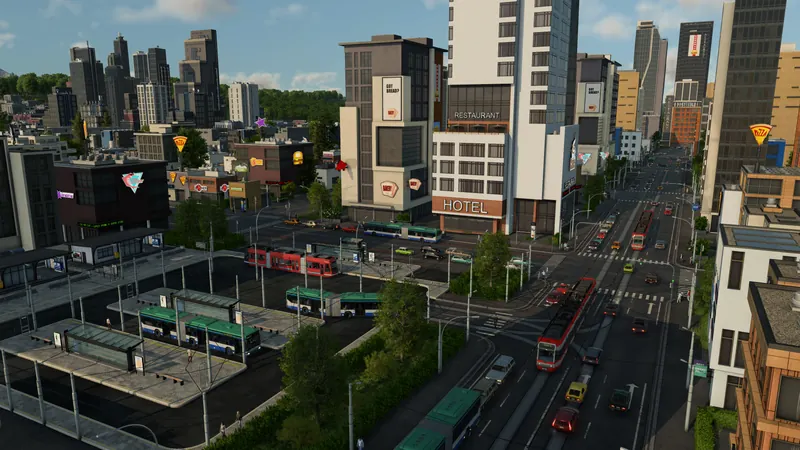
Align the preview before confirming construction
- Open the relevant road, rail, water or air construction tool and choose the building. For a station, set the available initial parameters, such as platform count and length, before choosing its final position.
- With the unbuilt preview active, press M or N and watch the building's orientation. Use Shift with these controls when a coarse turn overshoots the alignment you want.
- Adjust elevation with comma or period. Check the resulting approach and terrain proposal rather than judging the roof alone. Shift also gives smaller height steps.
- Alternatively, hold Shift and the left mouse button while moving the pointer sideways to adjust rotation. Keep watching the preview so that you distinguish the gesture from a placement click.
- If a station keeps aligning itself to a nearby track, road or coastline, hold Shift to prevent its automatic snap. Use this only where the finished layout will still have the connection you need.
- Review warnings, highlighted buildings and the construction cost, then place the building when the proposal is valid. Terrain adjustment and any required demolition are part of that proposal.
Infrastructure
Official overview of the building systems. This is context, not evidence that these exact keyboard steps were performed in the video.
Watch on YouTube ↗Confirm orientation and access
The preview changes direction or height as intended, and the final building has a usable approach. After placing a station, check passenger access and the intended vehicle path. After placing a depot, verify that vehicles can reach their assigned line. A visually neat alignment alone does not prove either connection.
If you are rotating the wrong thing
- The whole view turns: Q/E are camera rotation controls. Return to the unbuilt construction preview and use its M/N controls; inspect the Keyboard mappings if you have rebound them.
- You selected a station already on the map: Configure opens its module editor. That is a different operation from rotating a new whole-station preview. Check whether changing the relevant modules solves the layout before considering a rebuild.
- The preview looks right but vehicles cannot enter: follow the route and approach checks. Rotating a building does not add a missing road, rail or water connection.
Related tasks: Station entrance and pedestrian access · Road and track construction · Walking between services