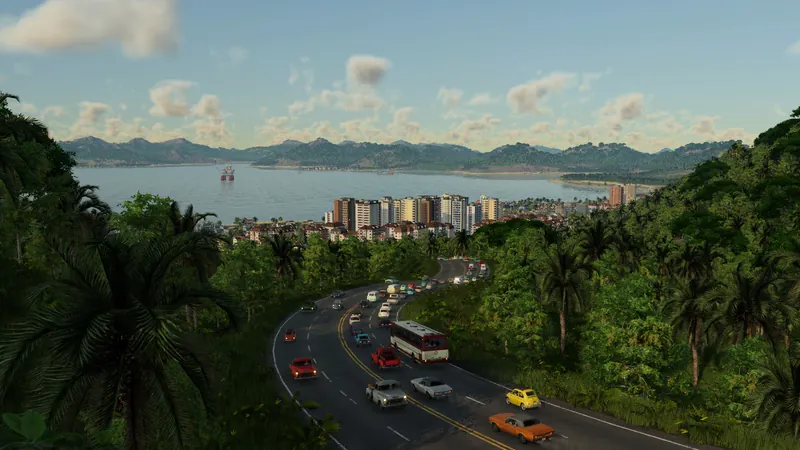
Isolate the hitch in your own save
- Make a repeatable check. Load the affected save, keep the same simulation speed and pan over the same busy view. Notice whether the hitch happens only just after loading, only when city names appear, or throughout play. Let initial activity settle briefly, then repeat the movement before changing anything.
- Separate label stutter. If the hitch follows city names or icons, test the reversible Cities layer toggle first. If the view stutters without those labels, restore the overlay and continue.
- Test AA by itself. Note the current graphics values, then lower or disable anti-aliasing in the game's graphics menu. Compare the same view and camera move. A release-player hardware discussion singles out 4× AA and limited VRAM, but the gain depends on the PC. Restore AA if it does not help.
- Watch VRAM and test one more option. If your GPU's memory is near its limit during the affected view, reduce render resolution or reflection/shadow quality one step at a time. Recheck after each change. One player said medium reflections helped after a driver update; that does not prove which change alone caused the improvement.
- Check the driver only after noting the baseline. If you use a supported GPU and have an older driver, compare with its current vendor driver and the same save. Keep the old version number in your notes so you can report a regression. Do not install third-party tuning utilities or alter CPU affinity on the basis of one forum post.
Tycoon Gameplay Overview
Shows the map and simulation context; it is not a benchmark or stutter fix tutorial.
Watch on YouTube ↗How to tell a change helped
In the same save, view and simulation state, the repeated hitch is less frequent or disappears after one named change. Stable average FPS alone does not prove smooth frame delivery. Keep a setting only when the before/after comparison is visible in play.
If the stutter remains
- Only the first moments after load are rough: compare again after the map settles. Record how long the initial hitch lasts and whether it returns later.
- AA and VRAM changes do nothing: restore preferred graphics, compare a small unmodded save with the affected save, and check the listed hardware and SSD requirements. This distinguishes a particular large/modded map from a broad launch problem.
- Simulation slows along with frames: record map size, vehicle count and simulation speed. A graphics setting may not address simulation work. Report the build, hardware, driver, save size and one repeatable camera route to official support; a new patch may change this answer.