Open the future-vehicle calendar
- Choose the TF3 listing. Follow the author's Upcoming Vehicles listing. Read the current compatibility and dependency information, subscribe and finish the download. Use the mod installation steps to enable it in the intended world; back up an existing save first.
- Find the calendar in the game bar. After loading that world, look next to the revenue display and select the calendar button. A subscription alone does not demonstrate that the mod is active in this save.
- Browse the year you are planning for. The author's interface groups upcoming vehicles by year and shows a picture, vehicle type and maximum speed. Use the train, road, tram, ship or aircraft filters to narrow the list. The window can be moved.
- Compare the arrival with your actual route. The author says the calendar includes modded vehicles. Treat its dates as information for the active content, and check the depot store when the model becomes available. Verify cargo capability, cost, infrastructure and depot access before buying.
Add a notification when a vehicle becomes available
New Vehicle Popup is a separate mod by the same author. Enable it using the same listing, download and save checks. When a new vehicle enters the market, the author describes a window at the top of the screen showing its picture, name, speed, price and year.
- For several arrivals together, read the counter, such as 1/3, and use Next to see the other vehicles. Close the window with its cross when finished.
- In the mod settings, choose a display duration of 3, 5, 8 or 12 seconds, or never for no automatic timeout. Choose whether to keep the original notification, select Modern or Original appearance, and set sound on or off.
- Observe an actual vehicle-introduction event. A year with no new model is not a test of whether the notification works. The author's comments do not establish that every collection of livery variants is consolidated into one alert.
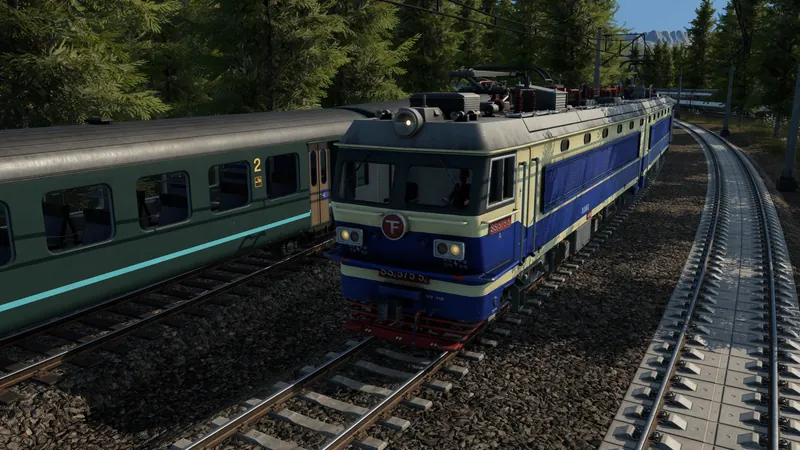
Official pre-release overview of TF3 vehicles and base-game systems. It does not demonstrate Upcoming Vehicles or New Vehicle Popup; the written steps come from their authors.
How to tell it worked
The calendar opens from the game bar and displays future models for the selected year and vehicle category. For the popup, an actual new-model event produces the notification, and its counter, Next and close controls work. Check the current store separately before committing to a fleet replacement.
If the button or alert is missing
- No calendar button: verify the exact TF3 mod, completed download, dependencies and this world's active mod list. If the current listing does not support your build or platform, retain the backed-up save and use its support instructions.
- The calendar model is absent from the store: check its introduction year, enabled content and store filters. The built-in No End Year option retains older models; it does not make every future model available early.
- Unexpected repeated alerts or a failure after enabling: preserve the build, mod IDs and settings, and compare with the backed-up world. Do not assume removing an arbitrary mod reverses changes already saved.
Related tasks: Enable mods · Find currently available models · Choose a vehicle for the route