Make a small edit before working on a whole junction
- Activate the correct mod in a copy of the world. Match the author and ID above, finish the download and follow the mod activation steps. Keep a separate known-working save before large changes. Subscription alone does not activate a mod in an existing world.
- Find Move It under the road tools/upgrade category. Release player Due_Magician2163 confirmed this location after Trifle_Useful directed them to the road tools. They had expected a separate main-interface button. Select the tool there; menu labels can vary with the installed version.
- Choose ordinary road or track geometry. Start with a node away from station, depot or industry-owned sections. Use Move It's construction-bar controls, checking the included README when your installed version differs.
- Use the handle that matches the edit. Drag the node to move it. The orange rotation ring turns an individual junction leg; the magenta curve handle bends a road segment. For a railway curve, move track nodes rather than assuming the road's segment-bending gesture works identically.
- Adjust the alignment and height in small steps. Use the controls below and inspect the connections at both ends. Snapping guides and terrain following can affect the result, so check their current state before repeating the same movement.
- Inspect the edited route and watch a vehicle use it. Verify the required junction turns and approach to each stop. If the small edit works, extend the selection deliberately. Keep the earlier save until the changed network operates correctly.
Keyboard controls and construction-bar tools
| Action | Author-documented control | What to check |
|---|---|---|
| Rotate the selection | M / N: 15°; hold Shift: 2.5° | Inspect each junction leg that must still connect. |
| Change height | Comma / period: 1 m; hold Shift: 0.1 m | Check both endpoints and the resulting slope. |
| Add to a selection | Shift + click, a selection box, or Ctrl + click along a connected path | Confirm the selected group before changing height or alignment. |
| Toggle snapping | C, or the toolbar's snapping modes | Angle, curve and parallel guides help align the edit; they do not prove a usable route. |
| Toggle terrain following | T, or its toolbar mode | Check whether following the terrain suits the intended grade. |
The construction bar also provides Straighten, Level, Grade, Curve and Dissolve, with height, slope and elevation-type controls for roads and tracks. Use a small selection when learning each tool and inspect its actual result. The public description does not document every parameter or a universal undo operation; consult the included README for your installed version rather than guessing a recovery key.
On a controller, the author supports selecting and moving node groups, rotating junction legs, changing height and using the toolbar. Follow the contextual button hints shown on screen. The keyboard values above do not establish the matching buttons for every controller.
Protected geometry and the optional Anarchy mode
Station-, depot- and industry-owned geometry cannot be rebuilt by this tool. If one of those sections refuses the edit, do not treat it as proof that installation failed. Use the relevant building's own configuration controls where available; whole-building relocation is outside the author's stated scope.
Dissolve refuses segments with attached objects. Inspect the segment and its attachments rather than repeatedly applying it or deleting an operational object without checking its role.
Direct bending of a track segment requires the mod's optional Anarchy mode. Anarchy bypasses normal collision checks; it is not required for ordinary track-node editing and is not the default recommendation here. Preserve a save before deliberate use, then verify connections and vehicle passage. Removing a collision check does not establish that the resulting network is usable.
How to tell the edit worked
The intended road or railway now has the required alignment and height, its endpoints connect, and a vehicle completes the changed part of its assigned line. Check every required turn at an edited junction. A shape that looks smoother or a successful game load alone does not show that station access and route continuity survived.
If the tool is missing or an edit fails
- No Move It controls: check that the correct listing is active in this save, not only subscribed, and look in the road tools/upgrade category. Compare the installed version with its included README and current author instructions if that entry is missing.
- Only a particular section refuses edits: check protected ownership and attached objects first. Use nodes for rails before considering optional Anarchy.
- The wrong area moves: stop and inspect the entire selection, especially after Ctrl + click or box selection. Return to the preserved save if you cannot reliably restore the intended geometry.
- A service no longer finds its stop: use the connection-error checks and inspect the junction's actual turns. Road and track construction rules still matter after reshaping; additional signals cannot create a missing connection.
Infrastructure
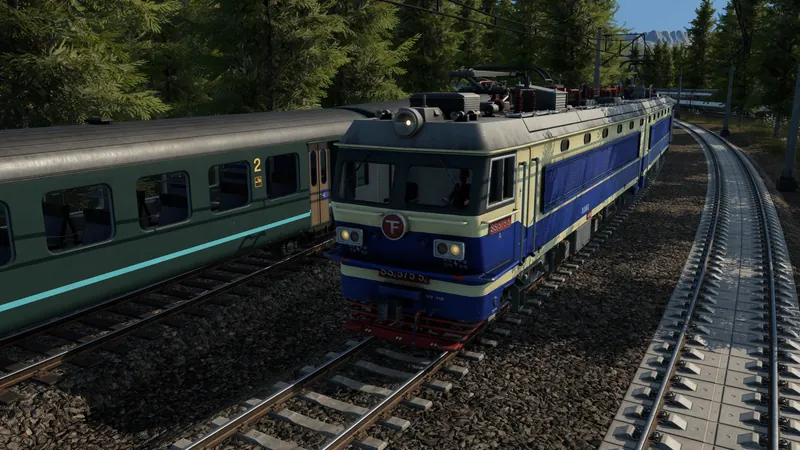
Official pre-release base-game context. This video does not demonstrate Move It or validate a modded edit.
Watch on YouTube ↗